
[UniQR] How do I use the QR sticker that comes with the device to wake up the machine (instead of the device's SN)?
First, connect the sticker to your device via the MOMA app. See How to Connect Your Unattended Machine via the MoMa 2.0 App and Your QR Code Sticker to learn more.
Once connected, Nayax's servers establish a link between the scanned URL and the device:
The Smart Sticker ID is matched to the device's virtual machine ID.
When scanned, the QR code generates a long URL that contains the specific identifier required for the transaction.
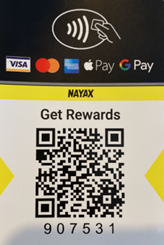
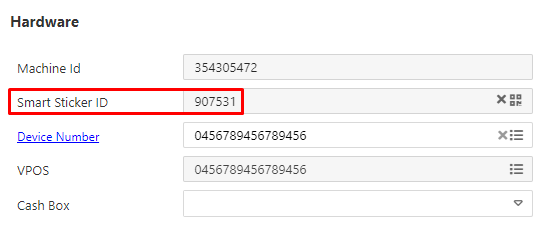
In the example above, the smart sticker ID is 907531, and when I hover my phone over the QR, I get the following URL: https://preview.page.link/m.monyx.com/?link=https://m.monyx.com/?data%3D1;https://qr.nayax.com/v1/rWg_p6pZh1pwjvbkGrmBLy3KgwSz3dq-y63r5FPxk2NOWw2&apn=com.monyx.wallet&isi=1455956409&ibi=com.monyx.wallet
Note: You need to use only the part which starts with http://qr.nayax.com/v1/x (until the "&"), meaning in my case I'd use https://qr.nayax.com/v1/rWg_p6pZh1pwjvbkGrmBLy3KgwSz3dq-y63r5FPxk2NOWw2.
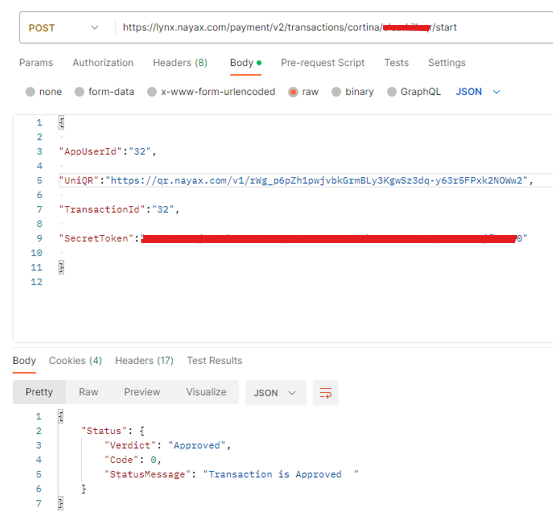
You would use "UniQR" field instead of "TerminalID", and insert the value of the QR code (Not the number written on it) as the value of it:
Creating QRs of your own
If you want to use a custom QR code that directs users to your own application, you must integrate a Nayax-provided HASH code into your URL.
/{hashCode}Nayax will provide a list of HASH details, including a unique UniQRCode (the HASH) for each machine.

- Take your desired link (e.g., https://YourApp.com) and append the HASH code to the end:
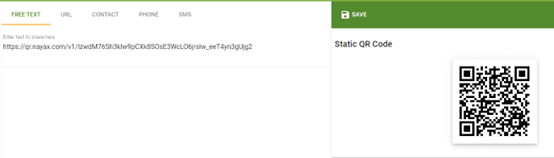
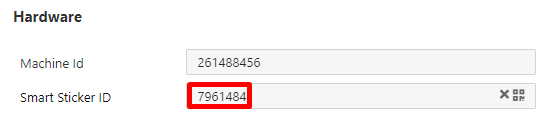
- Use the MOMA app to scan and attach the original Nayax QR sticker to the desired virtual machine: Actions > Attach a sticker > Scan the original QR.
- Now you can use the:
/{hashCode}Once linked, the UniQRNumber will appear in your virtual machine's Smart Sticker ID field, confirming the match.
Example
Let's say that I've got a customer who is named "MagicQR," and they want to generate their own QR code and have it be able to trigger their app, and they've got this UniQRNumber and UniQRCode:

They would first need to link the UniQRCode to the MoMa app, as mentioned above (to get the UniQRNumber linked to the desired virtual machine), then link the hash. After the link was made, they would use the same hash in their own URL: https://MagicQR.com/IzwdM76Sh3kIw9pCXk8SOsE3WcLO6jrslw_eeT4yn3gUjg2
This would mean that once a consumer has scanned this URL and MagicQR is ready to direct them for payment, they would need to take the hash at the end of the URL and revert it to the UniQRCode provided by Nayax, and then have "Start" include the URL in the "UniQR" field:
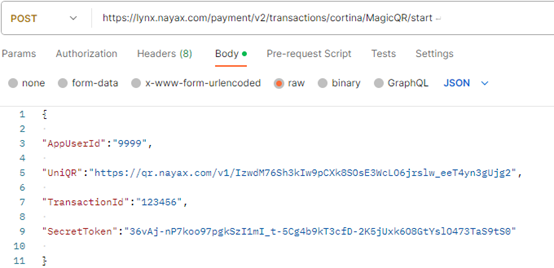
{
  "AppUserID": "9999",
	"UniQR": "https://qr.nayax.com/v1/rWg_p6pZh1pwjvbkGrmBLy3KgwSz3dq-y63r5FPxk2NOWw2",
  "TransactionId": "123456",
  "SecretToken": "*****"
}
Updated 3 months ago