
General
Proprietary Cards Supported
Nayax supports both swipe (Magstripe) and RFID cards.
The RFID supported are working in frequency 13.56 MHz: Nayax' reader is working in frequency 13.56 MHz and supports ISO 14443 Type A and Type B cards (e.g. MiFare Classis and MiFare Plus) + ISO 15693 (e.g. HID iClass). The most popular and simple RFID card supported by Nayax' card reader is of type: MiFare Classic 1K (or 4K).
Magstripe cards are supported as well- should they be compatible with a non credit card standard, i.e. do not contain any '=' in the card's data and UID is in range 4-40. Should they have and of those features- there is a possibility of supporting those but it may require an additional integration (Cortina Prepaid)
Vend denied- why Nayax doesn't provide a reason to the peripheral
As the device is unattended, we wouldn't like to embarrass consumers if their card is blocked etc.
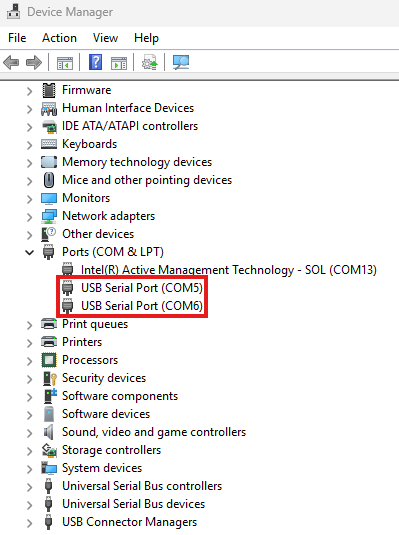
How to locate which virtual COM port matches the physical connection
Go to "Device Manager" -> "Ports":
Marshall Over ETH: Using the Same Cable for Both Marshall Communication As Well As the Device's with Nayax's Servers
The supported configuration is to communicate via Ethernet with both the (Marshall) peripheral and Nayax's servers.
It’s the router’s role to provide access to the external world in parallel to the peripheral.
Having the device communicate with the peripheral via Ethernet and with the servers via eSIM is not currently supported, as this setup is technically less natural for Android.
Enabling Alerts
To be able to see the alerts sent from the SDK in the Nayax Core, you should have the following configuration (even if your machine is not an EV charger)

In addition to that, you can't make up an alert ID, you should use an ID that exist in our database (and can be configurable). For example, you can use ID number 2, which is a "Door event" (you can change the event data as you desire):
• Alert ID of 200 or 810 does nothing. Best practice is to use alert ID 2.
m_vmc.general.alert((short) 2, "Back door opened");vmc_instance.general.alert(2, "alert test");uint8_t alert_str[32];
sprintf((char*)&alert_str,"Back door opened");
vmc_general_alert((short)2, (char*)&alert_str, strlen((char*)&alert_str));Product Map
This feature allows you to manage products via Nayax Core for your peripherals. This feature is irrelevant for Marshall, as the Product map is not used there. The only relevance is that, if you look in Last Sales/Dynamic Transaction Monitor, you'd see the product name in the transaction details, which appears in the product map for the product code the peripheral has sent.
Should managing a product map be relevant for you? Our Support team has sent links for our Nayax U, in which there are guides about that:
Setting up a Product Map:
https://nayax-u.nayax.com/scenario/how-to-create-a-product-map-template-administration-2349
Setting up a product in the Procut Map:
https://nayax-u.nayax.com/scenario/how-to-create-a-product-administration-937
Example:
The peripheral has sent a "Vend Request" for product code 1 and price of 10.00, and the product map has a row regarding product code 1 which has the name of "Apple" and cost of 20.00- the price that the consumer would be charged for would be 10.00, and in Last Sales/ Dynamic Transaction Monitor you'd see that the transaction is for product code 1 and alongside the product code you'd see "Apple"
How to get the eReceipt product name not to be "unknown"?
The product names are taken from our product map, so you can create products in it and name them (to match the product codes you send via the SDK). Just keep in mind that Marshall does not use any of the information in the product map, so you can put whatever you want in it. It won't affect the transaction flow, including prices (the only field relevant to you is the product code name, which appears in Last Sales and the eReceipt file).
You can add new products to your device's product map by going to the "product map" tab, clicking on "Map"-> "Add BIN", and then add the product code and product group, PA code and MDB code (this is the one which should match the product code in the SDK), and then of course click on "save".
Static IP
There's a requirement to define a static IP for the machine, as when information returns, it would hit a firewall, making the data not know where to be routed.
Refund request
A refund occurs when a transaction is completed and settled, yet a consumer would like to get their money back for some reason. Marshall does not have a refund feature, as it does not relate to communication between the customer's machine and our device, but rather to the payment aspect. You can have a transaction cancelled or a consumer not be charged if you were unable to provide the goods. If there was an issue with dispensing the product, you should respond with "Vend Failure" instead of "Vend Success".
If the transaction was completed successfully (the consumer was charged) and you'd want to get a refund for it you can do it through Nayax Core: go to the Dynamic Transactions Monitor page, select the relevant transaction and press right click on it, select Request refund and confirm. Nayax's team will be approving the request, and once approved, you should see the funds back in your account within 1-2 days.
Unit of measure values
| Unit_of_measure_id | Unit_of_measure_name | Unit_of_measure_symbol |
|---|---|---|
1 | units | U |
2 | centimeter | Cm |
3 | Gram | G |
4 | Second | S |
5 | Celsius | °C |
6 | Milliliter | Ml |
7 | Watt hour | Wh |
8 | Kilowatt hour | kWh |
Gtrace retrieval
Gtrace is a log that provides general information about the device's behavior, unrelated to communication with your machine. It would not show up in the SDK's commands and logs, but on the Gtrace- another type of log file, but this one is generated by Nayax's reader and is sent to Nayax Core.
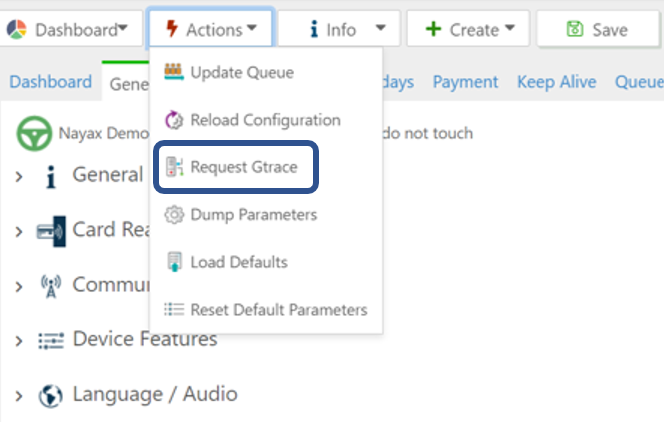
Should it be relevant to you, you can retrieve a Gtrace the following way (note that to retrieve it, your device should be on, as you can imagine):
Once you've selected your desired machine, you should choose "Actions"-> "Request Gtrace":
Once you've sent the request, you would see that under the "Dex" tab there would appear a new line/s in the table with the Dex Source of GtraceV2:
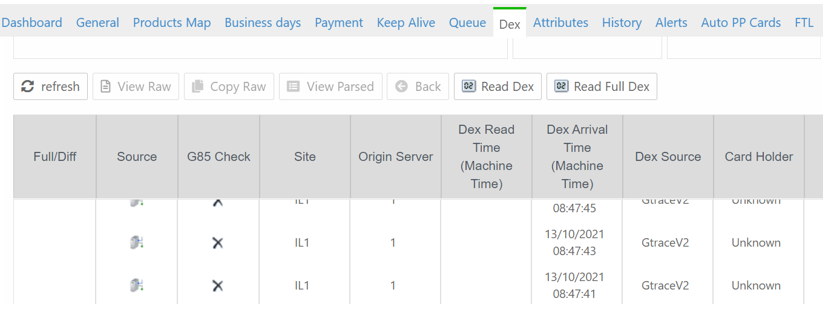
Once you click on the desired log (on a specific line in the table) and on the "View Parsed" button, you'd be able to see the whole log.
Important note: The device must be online for the Grace to be collected.
Last Alerts retrieval
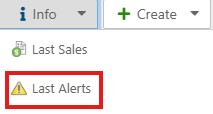
Last Alerts is a log that appears in Nayax Core under your relevant device's virtual machine. The log provides information on alerts sent between the device and our servers. To retrieve it, you should go to the relevant virtual machine, and then click on Info-> Last Alerts:
Cables SKUs
C130011- Regular Marshall cable - VPOST/Onyx
C150001- Onyx Marshall cable (with ETH)
C140001- VPOST ETH adaptor (RJ11 male to RJ45 female)
NX-CB0135- VPOS Media 4S Marshall cable
NX-CB0138- VPOS Media 5 Marshall cable
NX-CB0156- VPOS Media 4S ETH adaptor (USB-C to RJ45 female)
Firmware version update process
VPOST/ Onyx:
The firmware update is initiated from Nayax Core.
The firmware update is made out of 2 parts- the MAIN update and POS update.
For the MAIN update, you'd see "gloader" at the top of the screen, along with a percentage next to it. Once completed, the device would reset itself and start downloading and updating the POS. Please do not touch it until the device resets, as the device's screen will also appear black while the POS is being erased and updated. After completion, the VPOST would power up and enter idle mode. This whole process usually takes 30-60 minutes (may take longer if using ETH), so keep that in mind.
VPOSM 4S:
Similar to VPOST and Onyx, the firmware updates are initiated from Nayax Core, but unlike those devices, it is made out of only one part.
The download process runs in the background, so consumers can continue using the device during it. Once the download completes, the device will automatically start the installation and display a matching installation screen showing the current installation progress.
VPOSM5
Unlike VPOST/Onyx/VPOSM 4S, the firmware update is initiated from a separate site, called CasHub. The firmware update process is done by having each of the relevant apps updated manually (not as one package).
The firmware update for each of the apps is made out of 2 separate parts: the download and the update- meaning once the download process has been completed, your local support would need to send the device a request to initiate the update process for the desired apps.
Timeout for getting approval of the transaction from the acquirer
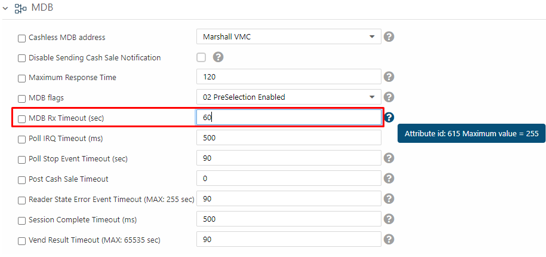
The "Authorizing, Please wait" would show until either a response is received from the acquirer or a timeout has reached. Usually, if the VPOST can communicate with our servers (our servers do not have issues getting response from acquirer) the whole process of sending the authorization request and getting a response back is a few seconds long, usually up to 5 seconds, but should there be any (GSM/VPN/MQTT/ETH) communication issues between the VPOST and our servers the request would take some time to arrive to our servers, or take some time to get the response from our servers. I've asked the support about that timeout, and they told me it's configurable with the "MDB RX Timeout" parameter, and the default value is 60 seconds:
"Trick" of starting a transaction at one location and finishing it at another
For this explanation, I'd use the example of cart rental:
- Have a transaction started from Nayax's device at the 1st location (take a cart from there)
- Have the consumer use the cart
- Have the consumer return the cart to any rail he desired (not necessarily the 1st location. Let's say it's a 2nd location)- at this stage Nayax's device at the 2nd location would recognize the cart, will send it's ID to a main server which will make a match between the cart ID and the Nayax device in which the transaction started with- and close the transaction over there. But as you can understand, in such a case, there is a need for server management on your side.
A couple of requirements:
- A server to manage which sessions are opened at which location
- A way to differentiate between different cards
- Each rail can have up to 60 carts available for rent at a time (should there be more, the consumer won't be able to rent those)
Dynamic QR channel URL appearing in the SDK (brand selection screen)
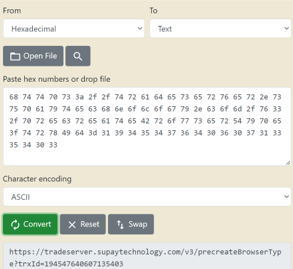
To have the brand selection screen start with, the device must be configured to Always Idle (since regular Preselection shows animations after a product is selected and cannot display brands). After I've selected a product, then the brand/channel and the QR appeared on the VPOST's screen- it also appeared in the SDK's log. The string appears in Hexa, so there's a need to convert it to ASCII in order to get the URL. For example: https://www.rapidtables.com/convert/number/hex-to-ascii.html
CPU requirements
No special requirements for any of the SDKs. Java and C# SDKs:
The SDK has such low CPU and memory requirements that if your machine can run a JVM, it can run the SDK. Our SDK developer estimates its memory usage to be around 50KB of RAM and almost zero CPU time. (It is based on a 100 code of lines, which are executed every 5ms, and upon serial data received, not much more than that on every packet)
C SDK: Our SDK developer estimates it's memory usage in around 1KB of RAM and every 5mv, timer tick of around 100 lines of code (actual machine code depends on compiler and platform). He ran it on an Atmel AVR with 2KB of RAM, an 8MHz controller, and plenty left for the actual application.
Updating an existing implementation's SDK with a newer SDK version
Java:
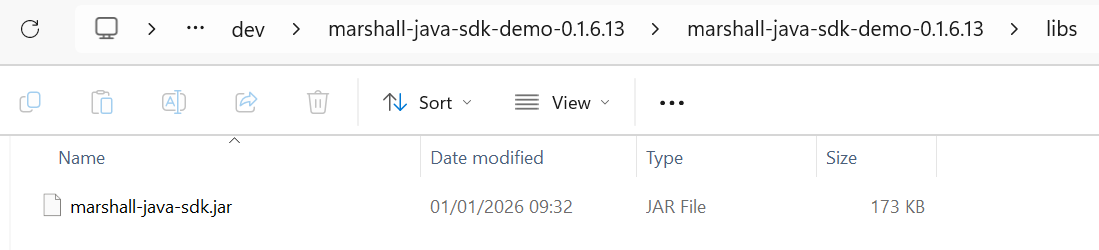
You'd replace the .JAR file (located inside the SDK's directory, inside the "libs" folder)
C#:
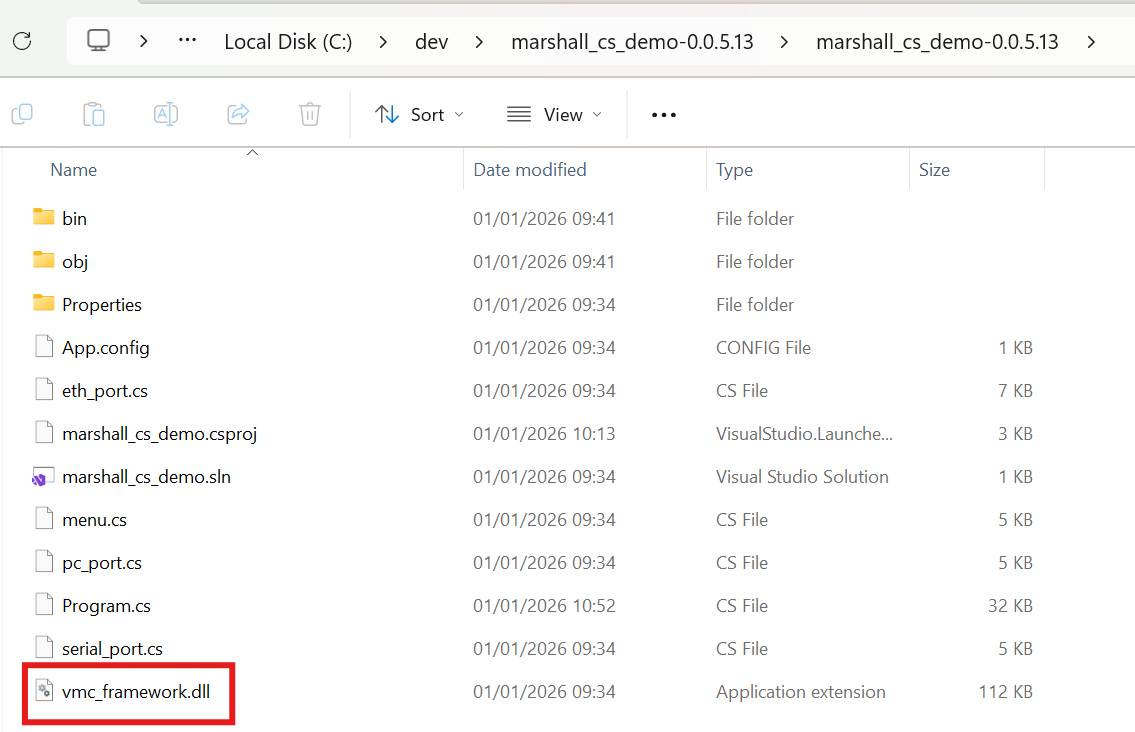
You'd replace the .DLL file (located inside the SDK's directory)
C:
You'd overwrite the previous SDK with the new one and recompile your implementation
Android
If you're working with Android - you won't use the serial port number Should your board have a serial port you can use the regular lowlevel of the Java SDK. Most Android boards do not have the onboard serial port - in that case you'd use the Android lowlevel file we'd send them. In such case they should use the Java SDK as is with the small change for changing the low-level serial port (as you’re using an Android platform) with the code in the demo called "nayax-android-marshall-demo_0_1_6_02"
The part in the SDK which relates to the serial port is:
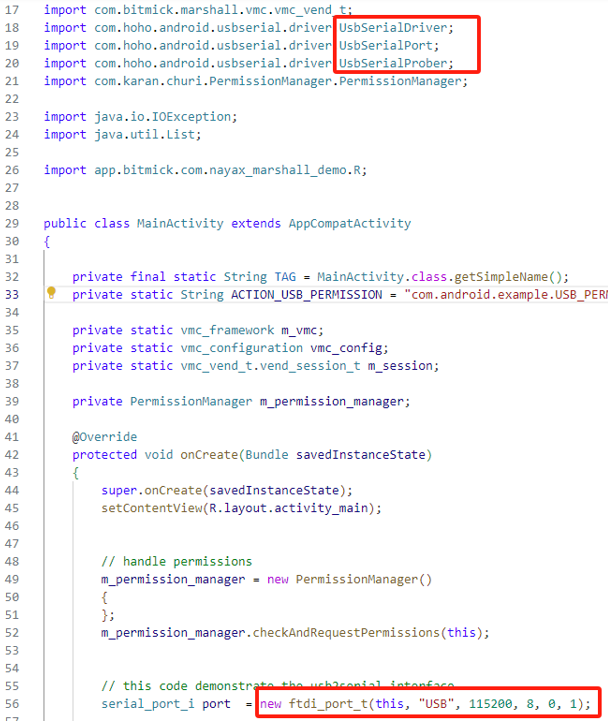
• Note : when working with the lowlevel serial for Android they you wouldn't be able to play with the demo app= but you can use it as a reference as to how to initiate transactions
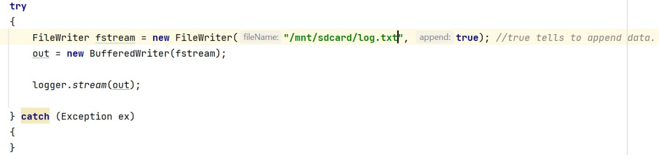
As for the path when working with Android- you should provide the logger an object of BufferedWriter type. He sent the following example of writing to your SD card:
In case of UART located at /dev/tty:
Android cant access "/dev/tty...." meaning you need the vendor serial port library, and implement "serial_port_i" around it.
ftdi is for USB serial port converted
Updated 30 days ago